URL: Omni Links
“With “Omni Links” you bookmark files and items (documents, text, graphics, tasks, etc.) for quick access, sharing with others, and later use with other projects.”
Omni Links, a new feature in OmniOutliner 6, are links that navigate to documents created by Omni applications or a specific section within those documents. Unlike standard file URLs, that reference items based upon your device’s unique file hierarchy, Omni Links can be shared with other users and are compatible with any Apple device. This compatibility is enabled by the use of a new “Connected Folders” feature, with which you grant Omni applications explicit access to the folders containing the files you wish to be shared. These “Connected Folders” can even reside on servers accessed by other members of your team.
An Example Use Case
A simple example would be to link to a specific section of an OmniOutliner document containing paragraphs used in the creation of legal instruments (such as “boilerplate” language). You could generate a series of Omni Links pointing to sections of the same “source” document, and by activating those Omni Links, individually retrieve a section instantly for insertion into other documents you are creating. Quick and accurate!
Boilerplate language is just one example. Every profession and field of study has content which is re-used or referenced, whether a graphic element, a formula or chunk of language. Omni Links provides a way to link to such content that works natively across all our apps, across all our devices, and that can be shared with a team. Omni Automation really sings when it gains the ability to create Omni Links and reference those links.
| Video 1: “Omni Links” and Networked Teams |
| A video detailing how to use “Omni Links” with documents stored on a sharepoint server. |
|
|
OmniOutliner (v6): Share “Omni Links” Plug-In
URL Functions for Omni Links:
To enable Omni Automation scripts and plug-ins to generate and interact with Omni Links, the API has been expanded to include the following functions:
omniLink(path: String, folderName: String) → (URL) • Constructs an Omni Link for a given path inside a Connected Folder.
resolveFileURLForOmniLink(omniLink: URL, additionalPromptMessage: String or null) → (Promise of URL) • Resolves an Omni Link into a file URL.
omniLinkForFileURL(fileURL: URL, additionalQueryItems: Array of URL.QueryItem or null, additionalPromptMessage: String or null) → (Promise of URL) • Generates an Omni Link from a file URL, with optional additional query items.
Omni Links rely on user-designated “Connected Folders” to provide the location of the targeted file. In this example, the OmniOutliner document (Boilerplate.ooutline) is in the default OmniOutliner Documents folder on the user’s iCloud Drive, which is designated as the Connected Folder:
Example “Omni Link”

omnioutliner:///doc/Documents/Boilerplate.ooutline?folder=iCloud%20Drive
Omni Links may also contain references to specific elements within the host document, such as rows in an OmniOutliner outline. Selected items are represented in the link by their unique IDs used as the value for the “row” parameter:
Example “Omni Link” (element)

omniLinkStr = "omnioutliner:///doc/Documents/Boilerplate.ooutline?folder=iCloud%20Drive&row=bHkiZI2Qms1"
Extracting “Omni Link” Components
Using standard URL class properties and functions, scripts can parse Omni Links to extract its various components.
Document File Name
omniLinkStr = "omnioutliner:///doc/Documents/Boilerplate.ooutline?folder=iCloud%20Drive&row=bHkiZI2Qms1"omniLinkURL = URL.fromString(omniLinkStr)docFileName = omniLinkURL.pathExtension//--> "Boilerplate.ooutline"
To extract the various elements, use the URL.QueryItem class of the URL class:
Connected Folder Name (from URL string)
omniLinkStr = "omnioutliner:///doc/Documents/Boilerplate.ooutline?folder=iCloud%20Drive&row=bHkiZI2Qms1"urlComps = URL.Components.fromString(omniLinkStr)qItem = urlComps.queryItems.find(qItem => qItem.name === "folder")folderName = qItem.value//--> "iCloud Drive"
Connected Folder Name (from URL object)
omniLinkStr = "omnioutliner:///doc/Documents/Boilerplate.ooutline?folder=iCloud%20Drive&row=bHkiZI2Qms1"omniLinkURL = URL.fromString(omniLinkStr)urlComps = URL.Components.fromURL(omniLinkURL, false)qItem = urlComps.queryItems.find(qItem => qItem.name === "folder")folderName = qItem.value//--> "iCloud Drive"
And for OmniOutliner, use the “row” parameter to retrieve the IDs of the selected rows:.
Linked Object Identifiers (OmniOutliner)
omniLinkStr = "omnioutliner:///doc/Documents/Boilerplate.ooutline?folder=iCloud%20Drive&row=bHkiZI2Qms1"urlComps = URL.Components.fromString(omniLinkStr)qItems = urlComps.queryItems.filter(qItem => qItem.name === "row")rowIDs = qItems.map(qItem => qItem.value)//--> ["bHkiZI2Qms1"]
Requesting File URLs from Omni Links
To open a linked document, you generate a file URL to the document using the resolveFileURLForOmniLink(…) function. Since the result of the function is an instance of the Promise class, wrap the script in an asynchronous handler and use the await parameter to wait for the resolution to be completed:
Get a File URL to a Linked Document File
(async () => {try {omniLinkStr = "omnioutliner:///doc/Documents/Boilerplate.ooutline?folder=iCloud%20Drive &row=bHkiZI2Qms1" omniLinkURL = URL.fromString(omniLinkStr)docFileURL = await URL.resolveFileURLForOmniLink(omniLinkURL, null)console.log(docFileURL.absoluteString)//--> file:///Users/otto/Library/Mobile%20Documents/ iCloud~com~omnigroup~OmniOutliner/ Documents/ Boilerplate.ooutline }catch(err){new Alert(err.name, err.message).show()}})();
As you can see in the example above, use of the absoluteString property reveals the full file path to the linked file.
Interacting with the User
Because Omni Links reply on the user’s approval of Connect Folders, scripts and plug-in requests may trigger dialogs requiring user response. Appropriately, the API includes the ability to inform the user why an interaction is occurring and request a particular action by the user.
For example, here’s a script that is requesting a file URL to a specific document. If the document is not already within a Connected Folder, the user will be prompted to respond:
Get a File URL to a Linked Document File with Justification
omniLinkStr = "omnioutliner:///doc/Documents/Boilerplate.ooutline?folder=iCloud%20Drive&row=bHkiZI2Qms1"omniLinkURL = URL.fromString(omniLinkStr)urlComps = URL.Components.fromURL(omniLinkURL, false)qItem = urlComps.queryItems.find(qItem => qItem.name === "folder")folderName = qItem.valuedocFileName = omniLinkURL.pathExtensionplugInName = "Retrieve Data"reasonForRequest = `in order to process file: ${docFileName}`justification = `The plug-in “${plugInName}” is requesting the registration of folder “${folderName}” ${reasonForRequest}.`docFileURL = await URL.resolveFileURLForOmniLink(omniLinkURL, justification)
Here’s a similar example, showing a script attempting to extract the content of selected rows in an OmniOutliner document:
OmniOutliner: Extracting Content of Linked Rows
(async () => {try {omniLinkStr = "omnioutliner:///doc/Documents/Basic.ooutline?folder=iCloud%20Drive&row=bHkiZI2Qms1"urlComps = URL.Components.fromString(omniLinkStr)qItem = urlComps.queryItems.find(qItem => qItem.name === "folder")folderName = qItem.valuedocLink = URL.fromString(omniLinkStr)plugInName = "NAME-OF-PLUG-IN"justification = `The plug-in “${plugInName}” is requesting access to this outline in folder “${folderName}”, to make its previously linked content available for use.`fileURL = await URL.resolveFileURLForOmniLink(docLink, justification)console.log("fileURL", fileURL.absoluteString)// OPEN FILE AND PROCESS INDICATED ROWSapp.openDocument(document, fileURL, function(doc, wasOpen){qItems = urlComps.queryItems.filter(qItem => qItem.name === "row")rowIDs = qItems.map(qItem => qItem.value)console.log("rowIDs count:", rowIDs.length)if(rowIDs.length > 0){for(id of rowIDs){console.log("id:", id)doc.outline.rootItem.apply(item => {if(item.identifier === id){console.log(item.topic)return Item.ApplyResult.Stop}})}}if(!wasOpen){doc.close()}})}catch(err){new Alert(err.name, err.message).show()}})();
Requesting an “Omni Link” to a chosen file:
Request an “Omni Link” to Chosen File
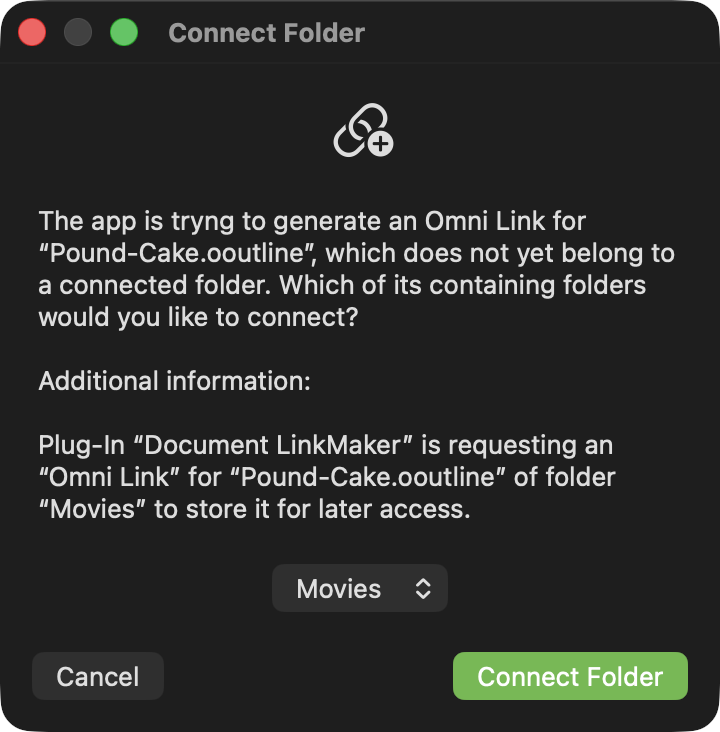
(async () => {try {OOFileType = new TypeIdentifier("com.omnigroup.omnioutliner.xmlooutline") picker = new FilePicker()picker.folders = falsepicker.multiple = falsepicker.types = [OOFileType]urls = await picker.show()fileURL = urls[0]console.log(fileURL.absoluteString)fileName = fileURL.pathExtensionconsole.log("fileName:", fileName)folderURL = fileURL.deletingLastPathComponent()folderName = folderURL.lastPathComponentconsole.log("folderName:", folderName)plugInName = "Document LinkMaker"justification = `Plug-In “${plugInName}” is requesting an “Omni Link” for “${fileName}” of folder “${folderName}” to store it for later access.`omniLink = await URL.omniLinkForFileURL(fileURL, null, justification)console.log(omniLink.string)//--> omnioutliner:///doc/Days%20of%20the%20Week.ooutline?folder=Desktop}catch(err){if(!err.causedByUserCancelling){new Alert(err.name, err.message).show()}}})();
Here are some of the possible user-facing prompts, triggered by the scripts:
(⬇ see below ) “Omni Link” Request Alert Dialog:
Copied Omni Links
Scripts may find it necessary to retrieve Omni Links from the clipboard. Here’s how:
Retrieving “Omni Link” object from Pasteboard
try {if(Pasteboard.general.hasURLs){urlStr = Pasteboard.general.stringForType(TypeIdentifier.URL)if(urlStr.includes(":///doc/")){console.log(urlStr)// PROCESSING STATEMENTS GO HERE} else {throw {name:"URL TYPE ISSUE", message:"The copied URL is not an Omni Link object."}}} else {throw {name:"MISSING RESOURCE", message:"The clipboard does not contain a URL object."}}}catch(err){new Alert(err.name, err.message).show()}
Connected Folders
User-designated Connected Folders enable Omni Links to be viable and shareable. Scripts and plug-ins may, on occasion, need to interact with Connect Folders. Here are some typical interactions.
Getting URL of a Connected Folder
To derive the URL of a Connected Folder, include justification in case the folder is not already registered:
Template: Get URL of a Connected Folder
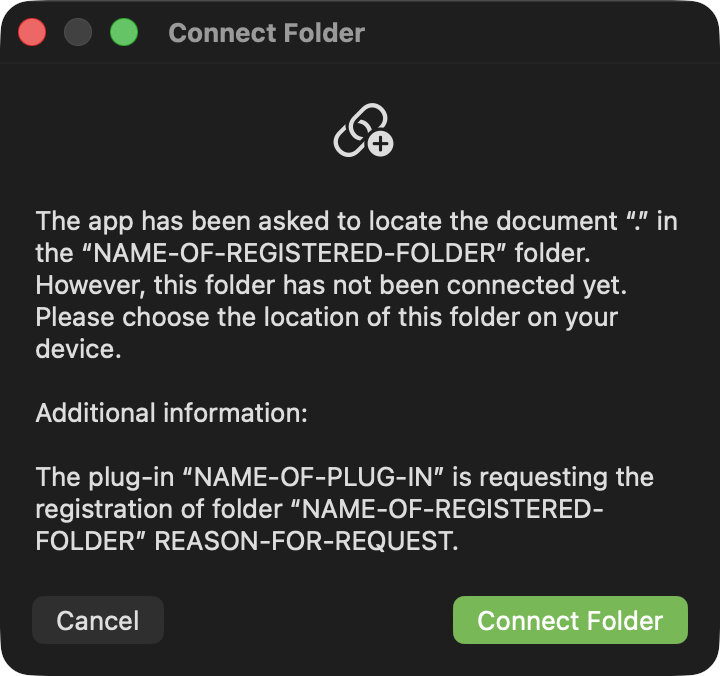
(async () => {try {plugInName = "NAME-OF-PLUG-IN"folderName = "NAME-OF-REGISTERED-FOLDER"reasonForRequest = "REASON-FOR-REQUEST"justification = `The plug-in “${plugInName}” is requesting the registration of folder “${folderName}” ${reasonForRequest}.`folderLink = URL.omniLink(".", folderName)folderURL = await URL.resolveFileURLForOmniLink(folderLink, justification)console.log("folderURL", folderURL.absoluteString)// PROCESSING STATEMENTS GO HERE}catch(err){new Alert(err.name, err.message).show()}})();
(⬇ see below ) Connect Folder Alert Dialog
Searching a Connected Folder
A common task performed by a script or plug-in would be to search a Connected Folder for a particular file or type of file. Here’s an example of searching a Conneced Folder for PNG image files:
Searching a Connected Folder
(async () => {try {plugInName = "NAME-OF-PLUG-IN"folderName = "NAME-OF-REGISTERED-FOLDER"reasonForRequest = "REASON-FOR-REQUEST"justification = `The plug-in “${plugInName}” is requesting the registration of folder “${folderName}” ${reasonForRequest}.`folderLink = URL.omniLink(".", folderName)folderURL = await URL.resolveFileURLForOmniLink(folderLink, justification)console.log("folderURL", folderURL.absoluteString)searchFileType = TypeIdentifier.pngperformRecursiveSearch = falseitemURLs = await folderURL.find([searchFileType], performRecursiveSearch)for (url of itemURLs){console.log(url.string)}itemCount = itemURLs.lengthhasHave = (itemCount === 1)? "has":"have"itemItems = (itemCount === 1)? "item":"items"alertMsg = `${itemCount} ${itemItems} ${hasHave} been logged to the Console.`new Alert("RESULTS",alertMsg).show()}catch(err){new Alert(err.name, err.message).show()}})();
Requesting Access to a Specific Folder
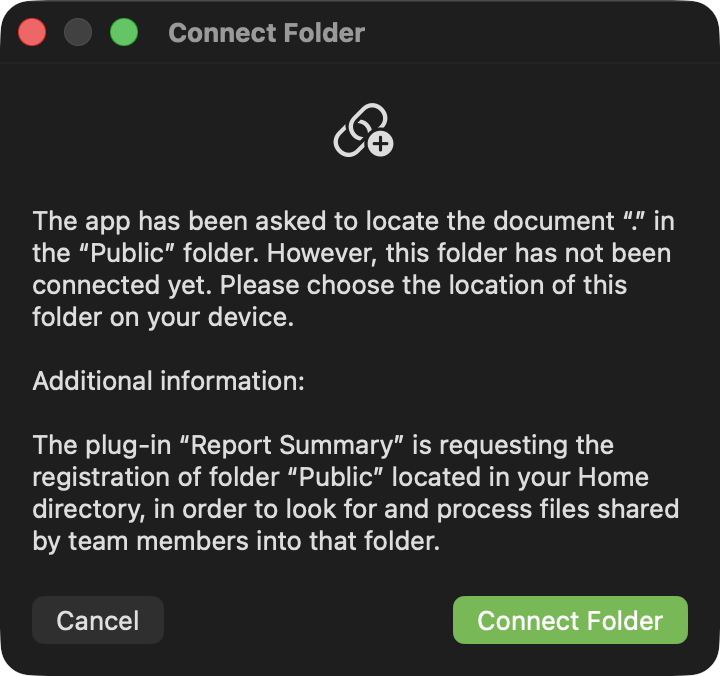
If a plug-in or script is designed to automate the designation of a specific folder, such as the user’s Public folder, here’s an example:
Requesting Access to a Specific Folder
(async () => {try {folderLink = URL.omniLink(".", "Public")justification = "The plug-in “Report Summary” is requesting the registration of folder “Public” located in your Home directory, in order to look for and process files shared by team members into that folder."folderURL = await URL.resolveFileURLForOmniLink(folderLink, justification)console.log("folderURL", folderURL.absoluteString)// PROCESSING STATEMENTS GO HERE}catch(err){if(!err.causedByUserCancelling){new Alert(err.name, err.message).show()}}})();
(⬇ see below ) Requesting Access to a Specific Folder
Omni Link for Current Document
A new instance function for the Document class provides the mechanism for script to generate an Omni Link to the current document.
createOmniLinkURL(additionalQueryItems: Array of URL.QueryItem or null, additionalPromptMessage: String or null) → (Promise of URL) • Creates an Omni Link for the current document, with optional parameters for additional query items and prompt message text. Convenience cover for URL.omniLinkForFileURL()
Here’s a basic script for generating an Omni Link for the current document. It includes no optional parameters:
Create an Omni Link for Current Document
(async () => {try {omniLink = await document.createOmniLinkURL()console.log(omniLink)}catch(err){new Alert(err.name, err.message).show()}})();//--> [object URL: omnioutliner:///doc/Documents/My%20Outline.ooutline?folder=iCloud%20Drive]
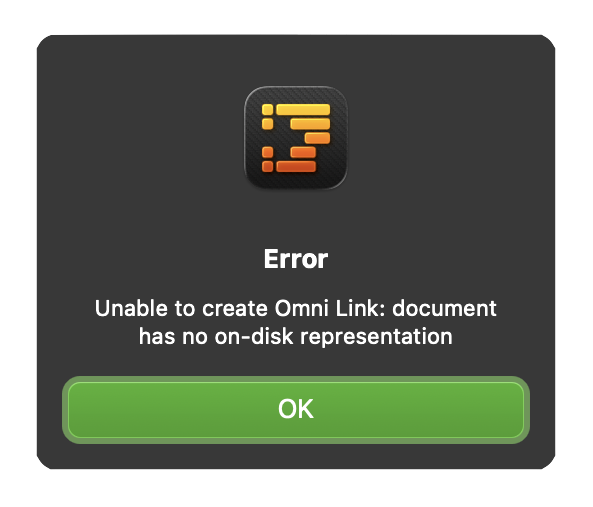
Unsaved Document
If the current document has not been previously saved, an error is thrown with the message indicating there is no saved file to reference:
Not in Connected Folder
If the current document has been saved, but is not residing in a Connected Folder, a prompt similar to this one is displayed to the user, encouraging them to make the document’s container a Connected Folder, or to move the document into an existing Connected Folder:
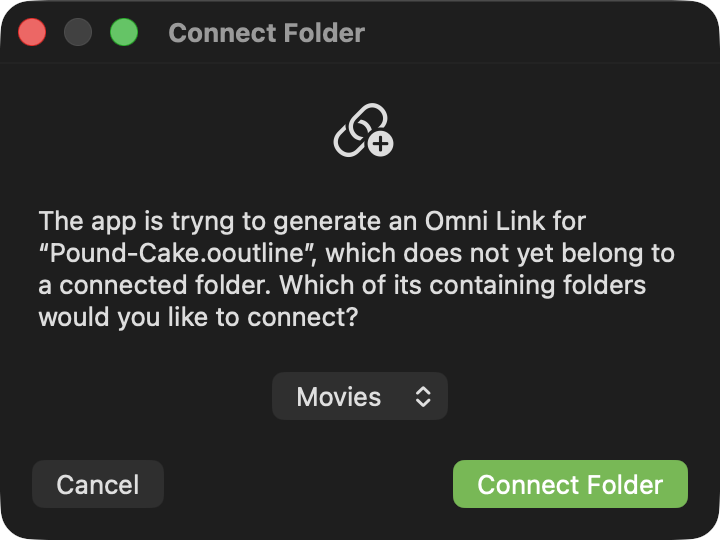
Should the user choose to Cancel the script execution, an error similar to this one is thrown:
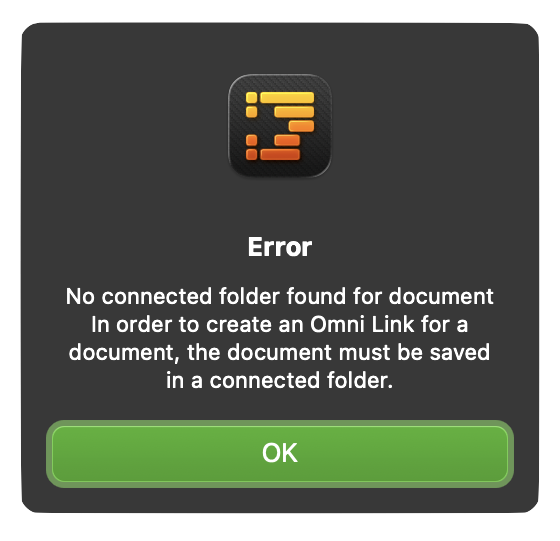
Omni Links Plug-Ins
A set of plug-ins for OmniOutliner 6.x that enable the archiving and retrieval of Omni Links.