URL: Plug-Ins for “Omni Links”
“With “Omni Links” you bookmark files and items (documents, text, graphics, tasks, etc.) for quick access and use later.”
“Omni Links” are references or “pointers” to documents, and optionally, elements within the documents, that you wish to access again.
A simple example would be to link to a specific section of an OmniOutliner document containing paragraphs used in the creation of legal instruments (such as “boilerplate” language). You could generate a series of Omni Links pointing to sections of the same “source” document, and by activating those Omni Links, individually retrieve a section instantly for insertion into other documents you are creating. Quick and accurate!
Boilerplate language is just one example. Every profession and field of study has content which is re-used or referenced, whether a graphic element, a formula or chunk of language. Omni Links provides a way to link to such content that works natively across all our apps, across all our devices, and that can be shared with a team. Omni Automation really sings when it gains the ability to create Omni Links and reference those links.
For information regarding the interaction of Omni Links using Omni Automation, visit this page.
NOTE: Archived “Omni Links” are stored as percent encoded URL strings in the “Omni-Links.xml” file in the host Omni application’s local default Documents folder.
The Plug-Ins for Omni Links
“Omni Links” provide an innovative mechanism for storing and accessing content. The plug-ins available on this page are designed to make it easy for you to store Omni Links, retrieve them, and automatically perform actions for you with the retrieved links.
All of these plug-ins present standard interfaces that include menus, checkboxes, and text input fields that can be fully controlled from your keyboard using tools built into the operating system:
We strongly recommend you turn on macOS “Keyboard navigation” (Open Keyboard System Preferences) to be able to move focus between - and to select items from - the controls presented by the plug-ins.
Once Keyboard Navigation is enabled, you can:
- Use the TAB key to move forward between controls in a dialog, and SHIFT-TAB to move backwards.
- Use the DOWN-ARROW key to reveal the contents of an options menu, or type the first letters of the menu option you wish to select.
- Use the DOWN-ARROW and UP-ARROW keys to navigate the contents of an options menu (or type the first letters of the menu option you wish to select).
- Use the RETURN or ENTER key to select a highlighted menu option.
- Use the SPACE-BAR to select and deselect a checkbox.
- Use the RETURN key to approve and close the presented dialog.
- Type COMMAND-PERIOD to Cancel a presented dialog.
Using Keyboard Navigation you will be able to efficiently navigate, select, and approve plug-in dialogs!
The Six Ways to Launch Plug-Ins
ⓘ PRO TIP: Omni Automation plug-ins can be quickly launched by:
- Assigning the plug-in a keyboard shortcut in the Automation Configuration dialog. (VIDEO)
- Placing the plug-in in the toolbar of their host Omni application.
- Selecting the plug-in from the Automation Menu.
- (OmniFocus) Typing the first characters of a plug-in’s menu title in the Quick Open dialog.
- (Shortcuts) Creating a simple Shortcuts workflow containing the “(Run) Omni Automation Plug-In” action and then using Shortcuts automations, or Siri/Type-to-Siri to launch the shortcut.
- (OmniGraffle) Assigning a plug-in to the Action Browser Tool and selecting objects with the tool.
Omni Links Plug-Ins for OmniOutliner
These productivity plug-ins are designed for use with OmniOutliner (Requires v6).
IMPORTANT: These plug-ins are light-weight easy-to-use tools for storing and accessing your favorite Omni Links within Omni applications. They are not intended to replace robust link management software such as Hookmark by Luc Beaudoin.
| Video: Omni Links for Outlines |
| (3:00) Instructions for using OmniOutliner plug-ins for archiving and retrieving Omni Links. |
|
|
The first plug-in “Archive Omni Link” is used to quickly archive an “Omni Link” that has been copied to the clipboard:
OmniOutliner (v6): “Archive Omni Link”
The second plug-in “Omni Links Archive” is used to retrieve and process a chosen archived “Omni Link”:
OmniOutliner (v6): “Omni Links Archive”
The “Omni Links Archive” plug-in provides the ability to both retrieve and process a chosen archived “Omni Link.” Here are the possible actions that can be automatically performed by the plug-in with a retrieved archived “Omni Link”:
- Open the OmniOutliner document referenced by the Omni Link.
- Copy the Omni Link to the clipboard.
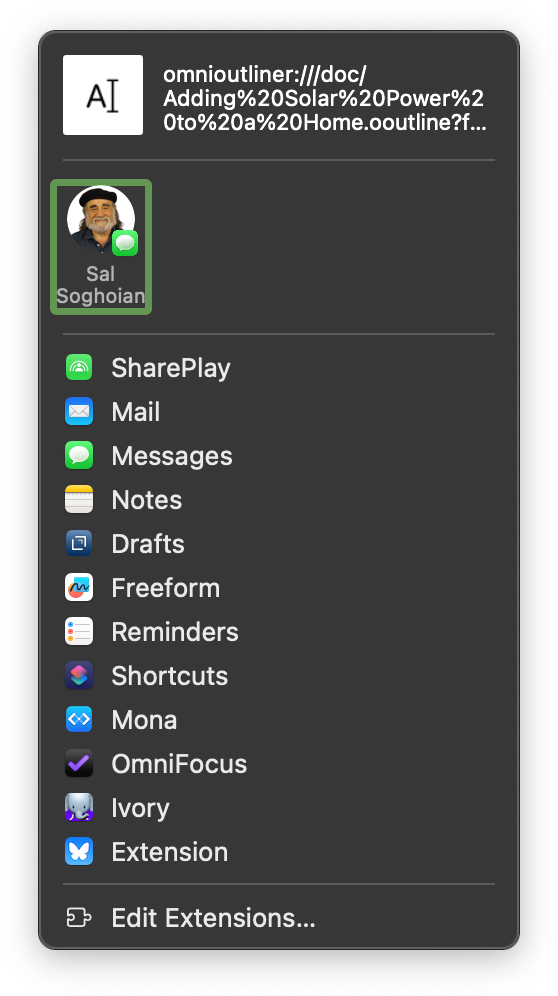
- Share the Omni Link with other applications or messaging services (Messages, Mail) using the system Share Panel.
- Create new document containing the content of the rows referenced in the Omni Link.
- Add the content of the referenced rows to the currently open OmniOutliner document.
(⬇ see below ) An “Omni Link” being shared via the system Share Panel